
▍ OptiTUIO Calibration Manual
Setup & Calibration Guide
Quick start workflow, network basics, ping tests, and step-by-step calibration guidelines.
Version: 20251014_V1-5-0_Beta_4
Last Updated: 15th September 2026
Quick Start Workflow
Follow this step-by-step checklist to calibrate your surface:
- Hardware Hookup: Connect your LiDAR sensor to your PC (Ethernet or USB depending on model). Ensure USB power is stable for USB sensors (like the OT-500).
- Launch Calibration Utility: Open
OptiTUIO.Calibration.exe. - Hardware Selection: Add your sensor under the Devices tab.
- Sensor Registration: Select the sensor, click the Info button to view its unique serial number, and email it to
info@interactiveasia.comto receive your license key. - Start Scanning: Click Start under the Devices tab. If communication is successful, a blue scanning sweep is visible in the preview window.
- Define Surface: Under the Screens tab, configure the target interactive screen dimensions.
- Screen Mapping: Assign the created screen to the active sensor.
- Configure Output: Under the Output tab, set up the preferred output protocol (TUIO, Mouse, or Windows Touch).
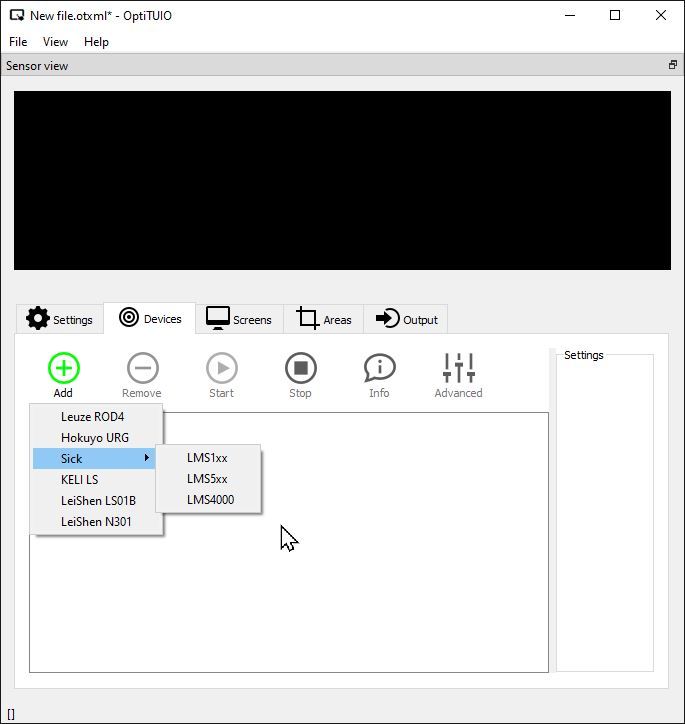 OptiTUIO Calibration: Adding a Sensor
IMPORTANT
Crucial Step: Screen Assignment
Always assign the created screen to the device in the settings before expecting touch outputs. If the screen is not mapped to the active sensor, no touch events will be emitted by the software.
Network Basics
Most professional sensors communicate via Ethernet. To establish a connection, the sensor and computer must be on the same local network subnet.
WARNING
Subnet Rule
Ensure the host machine running OptiTUIO™ has an IP address within the same network range as the sensor.
- Default Sensor IP: By default, standard Hokuyo and KELI LS2 sensors are configured with the IP address
192.168.0.10. - Testing Connection (Ping Test):
- Open a command prompt (
cmd.exe) on Windows by pressingWin + R, typingcmd, and pressing enter. - Type
ping 192.168.0.10(or the IP assigned to your sensor) and hit enter. - If you receive responses, the hardware connection is correct and communication is functional.
- If the ping fails:
- Check network adapters.
- Ensure the computer's static IP is set correctly (e.g.,
192.168.0.15, Subnet mask255.255.255.0). - Ensure the sensor and PC are connected through a functional switch or network cable.