
▍ OptiTUIO Calibration Manual
Server Autostart
How to configure the OptiTUIO server application to launch automatically when Windows boots.
Version: 20251014_V1-5-0_Beta_4
Last Updated: 15th September 2026
Automatically Running the Server
To ensure your interactive installation recovers automatically after power loss or system reboots, configure the lightweight OptiTUIO.Server.exe tool to start on Windows boot:
- Create a Shortcut: Navigate to your extracted
bin32orbin64directory, right-clickOptiTUIO.Server.exe, and select Create shortcut. - Configure Target File: Right-click the newly created shortcut and select Properties. Under the Shortcut tab, locate the Target field and append the absolute path to your saved
.otxmlcalibration file at the end of the command line.
- *Example Target Path:*
"C:\OptiTUIO\bin64\OptiTUIO.Server.exe" "C:\OptiTUIO\calibrations\display_setup.otxml"- Move to Startup Folder: Copy this shortcut file and paste it into the Windows system Startup directory:
- System-wide Startup Path:
C:\ProgramData\Microsoft\Windows\Start Menu\Programs\StartUp
- *Note: Accessing the system Startup directory requires administrator privileges. Alternatively, access your user-specific startup folder by pressing
Win + R, typingshell:startup, and pressing enter.*
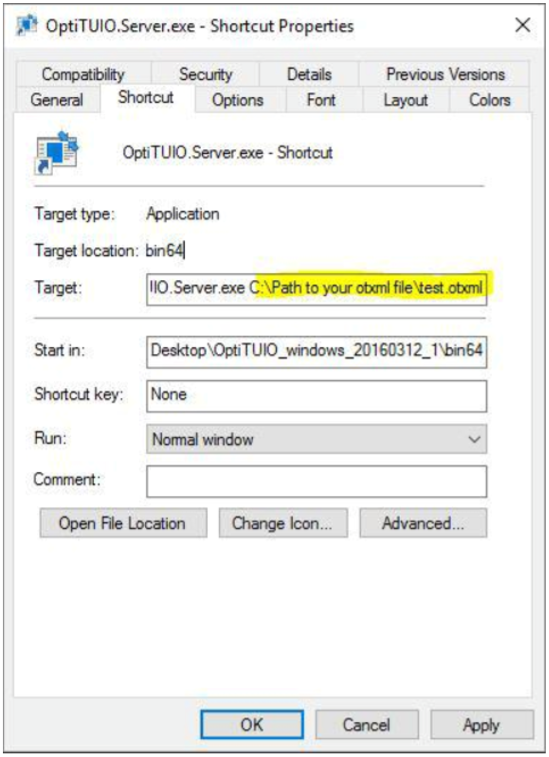 OptiTUIO Server Shortcut properties mapping