
▍ OptiTUIO Calibration Manual
Device Settings
Detailed parameter references for the Devices tab, sensor properties, and advanced signal filters.
Version: 20251014_V1-5-0_Beta_4
Last Updated: 15th September 2026
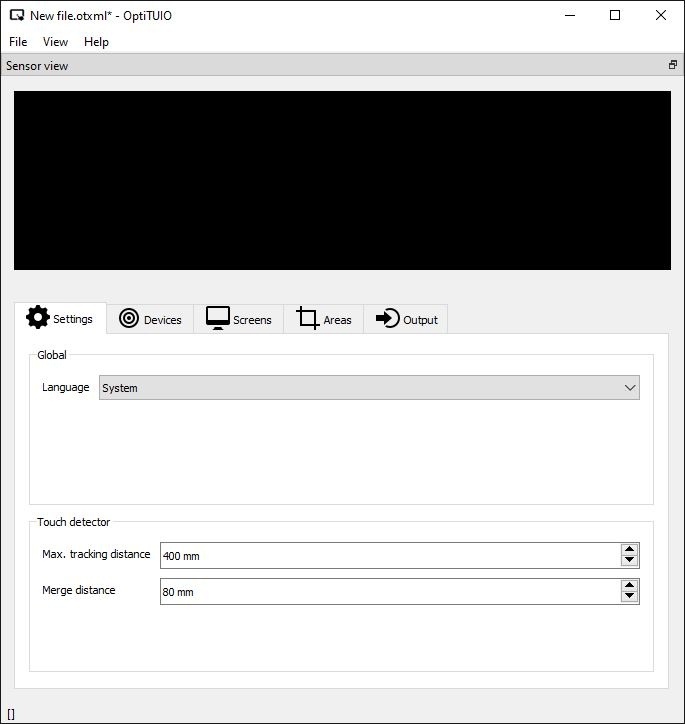 OptiTUIO Calibration: Main Interface Settings Tab
Devices Tab Configuration
Once a sensor is added under the Devices tab in the configuration utility, settings are available in the properties panel on the right:
- Name: Assign a custom identifier to the sensor.
- Connection: Defaults to
Network. If using a USB sensor (like the Hokuyo URG04 or OT-500), change this setting toSerial. - Offset X: Moves the sensor origin coordinate left or right in millimeters.
- Offset Y: Moves the sensor origin coordinate up or down in millimeters.
- Rotation: Adjusts the sensor angular alignment (Z rotation) in degrees.
- Kalman: Controls the signal noise filter. This adjusts the maximum deviation of measured coordinates. It is recommended to use the default values.
- Smoothing: Adjusts interpolation. A higher smoothing value reduces input jitter but introduces noticeable latency.
- Screen: Assigns a previously created interactive screen template to this sensor.
- Flip X / Y: Flips coordinates along the X or Y axes depending on physical mounting orientations.
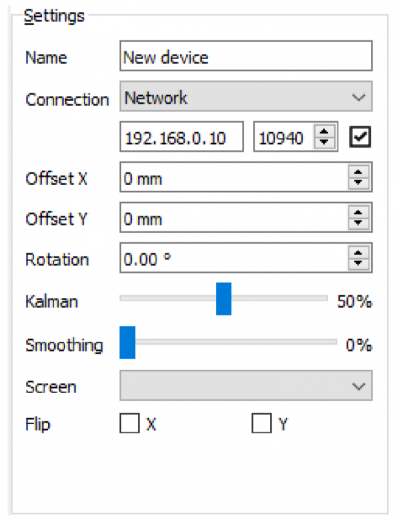 OptiTUIO Device Settings Properties Panel
Advanced Settings
Advanced configurations can be accessed by clicking the Advanced button in the device control bar.
WARNING
Advanced Settings Precaution
Modifying these settings can cause tracking failures or unexpected behaviors. For standard installations, we recommend leaving these parameters at their default values.
- Bilateral Filter: Reduces noise/errors detected very close to the sensor boundary. Disabled by default.
- Margin: Extends the active touch recognition area slightly beyond the boundary of the physical screen coordinates.
- Max. Touch Deviation: Specific threshold filter. Do not change this value.
- Min. Touch Segments: Specifies how many sensor detection rays must target a physical object before it is registered as an active touchpoint (Default is
3). - Min. Touch Age: The duration (in frames) a touch point must persist before being transmitted to output receivers.
- Record Option: Used for support cases. Clicking Record saves raw data files of the tracking process. This file can be shared with Interactive Asia Co. Ltd. to troubleshoot tracking anomalies.
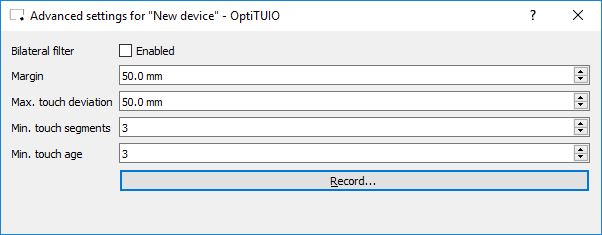 OptiTUIO Advanced Settings Configuration Panel