
Installation & Directory Structure
Instructions on extracting the OptiTUIO archive, verifying files, and installing the required Visual C++ runtime.
Windows Installation
On a Windows system, OptiTUIO™ runs as a portable application and does not require a formal installation process.
To get started:
- Download the OptiTUIO™ zip archive.
- Extract the archive into a dedicated directory on your system.
- Launch the calibration utility to begin setup.
Visual C++ Runtime Required
OptiTUIO™ requires the Microsoft Visual C++ Redistributable to run. You can find the installer (vcredist_x64.exe) directly inside the extracted bin32 or bin64 folders.
If the VC++ runtime is not installed on the system, OptiTUIO™ will fail to start.
Directory Structure
Once extracted, the main folder contains three subdirectories:
- `bin32`: Holds all 32-bit application binaries, configuration files, and libraries.
- `bin64`: Holds all 64-bit application binaries, configuration files, and libraries.
- `doc`: Contains licensing documentation and local release notes (
CHANGES.html).
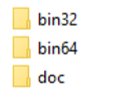 OptiTUIO Folder Directory Structure
Application Files
Inside the bin32 or bin64 folders, the following key files are included:
- `OptiTUIO.Calibration.exe`: The main graphical interface (GUI) used to add sensors, configure tracking zones, calibrate coordinate mapping, and save settings.
- `OptiTUIO.Server.exe`: The background runtime console wrapper. It runs without a graphical interface, reducing system resource utilization.
- `OptiTUIO.log`: Log file where warning levels, errors, and system activity are recorded.
- Support Files & DLLs:
- Core Qt libraries:
Qt5Core.dll,Qt5Gui.dll,Qt5Widgets.dll. - OpenSSL libraries:
libeay32.dll. - Tracking support DLLs:
libykcs11-1.dll,libykpiv-1.dll,QsLog.dll. - Subdirectories:
imageformats,platforms,styles,translations.
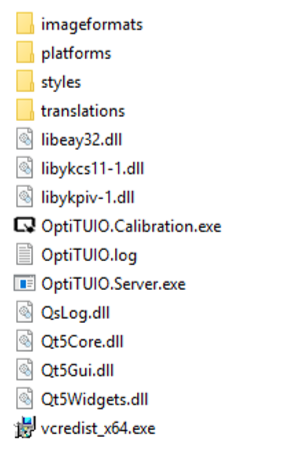 OptiTUIO Directory Binary Files List
Best Practice for Production Shows
We strongly suggest running OptiTUIO.Server.exe during active event schedules or commercial installations. After finalizing calibration settings using the GUI tool (OptiTUIO.Calibration.exe), save your configuration .otxml file. Then, configure the server application to start automatically with that saved calibration file.